To access on-campus services or academic resources, connect to the campus Wi-Fi (WMU-EDU) and log in.
Campus Network Name: WMU-EDU.
Username: Student ID.
Password: Unified Identity Authentication Password.
Note: To access off-campus resources such as chat software, live video streaming, and games, students must bring their ID card to a carrier's business office to apply for broadband. Once completed, the application can be linked to the school's Unified Identity Authentication account.
Computer connection and login steps
Open computer settings--WLAN
Find WMU-EDU in the list of available WLANs and click to connect. The authentication interface will automatically jump to the page.
The first connection requires binding to the operator account. A broadband account that has been processed but not bound to the operator.
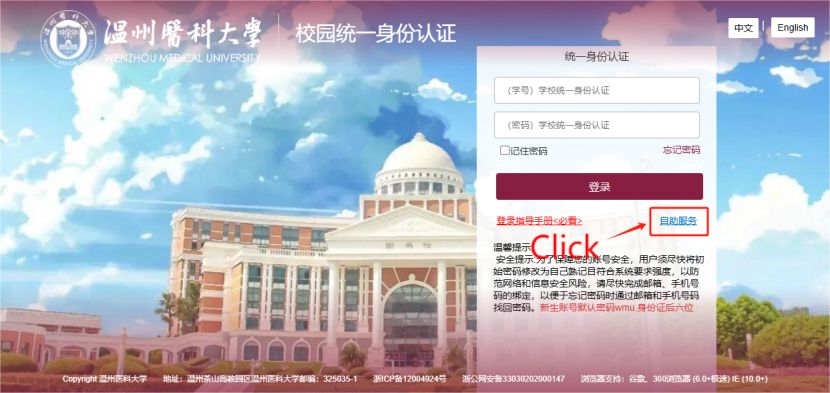
Click the "Self-Service" button to jump to the user self-service page and log in using the unified identity authentication password of the "Welcome System".
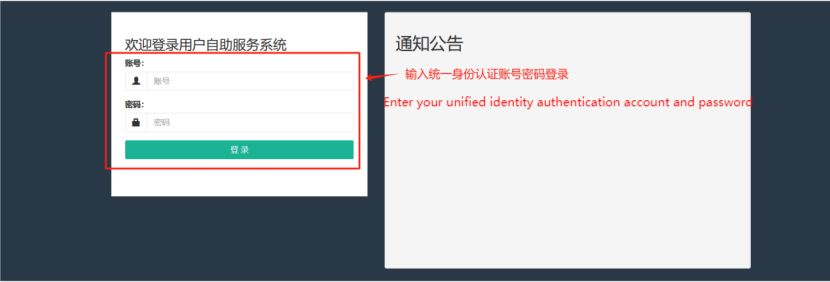
Log in using the unified identity authentication password of the "Welcome System".
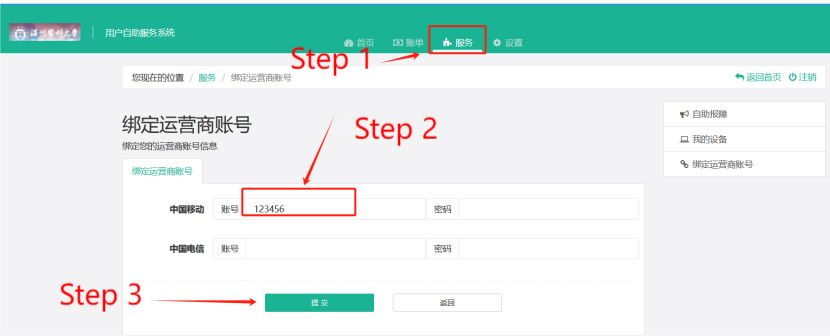
After successful login, click "Service" → Bind operator account and bind the broadband account and password provided by the operator.
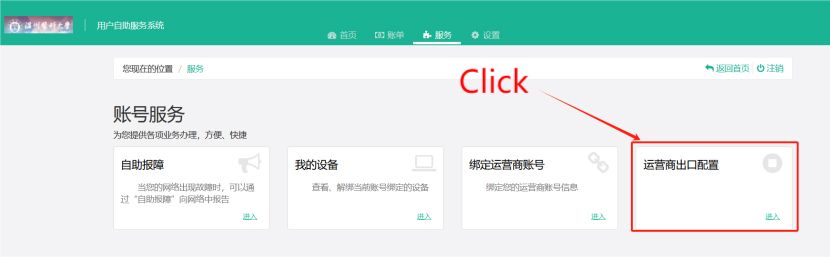
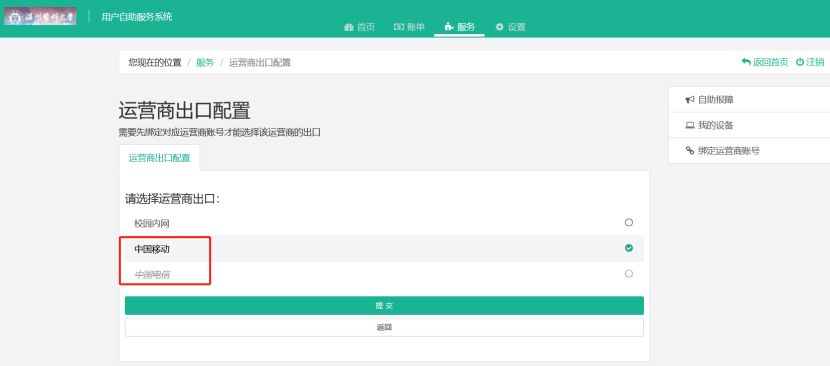
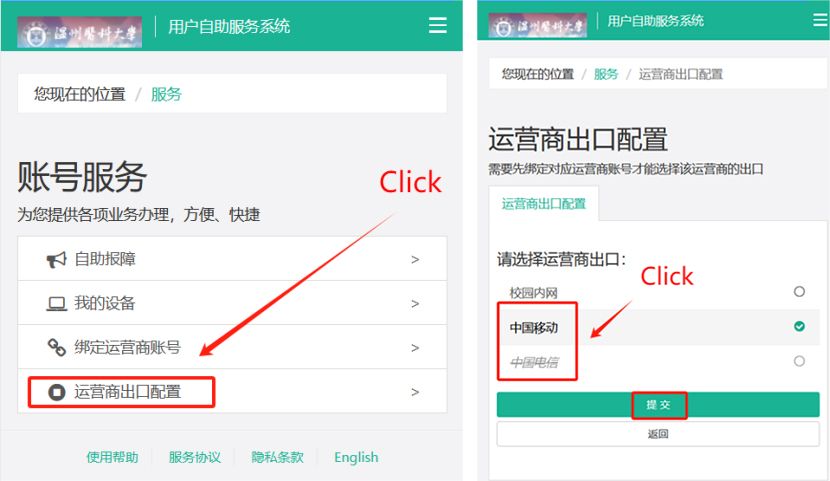
After the binding is successful, return to the service menu and click to select the operator export configuration
Check the bound operator export and submit
Log in
After completing the binding, re-enter the login page and log in using the unified identity authentication password of the "Welcome System".
The steps for connecting to the mobile phone are as follows
Open your wireless network settings.
Search and select WMU-EDU from your phone's wireless network list.
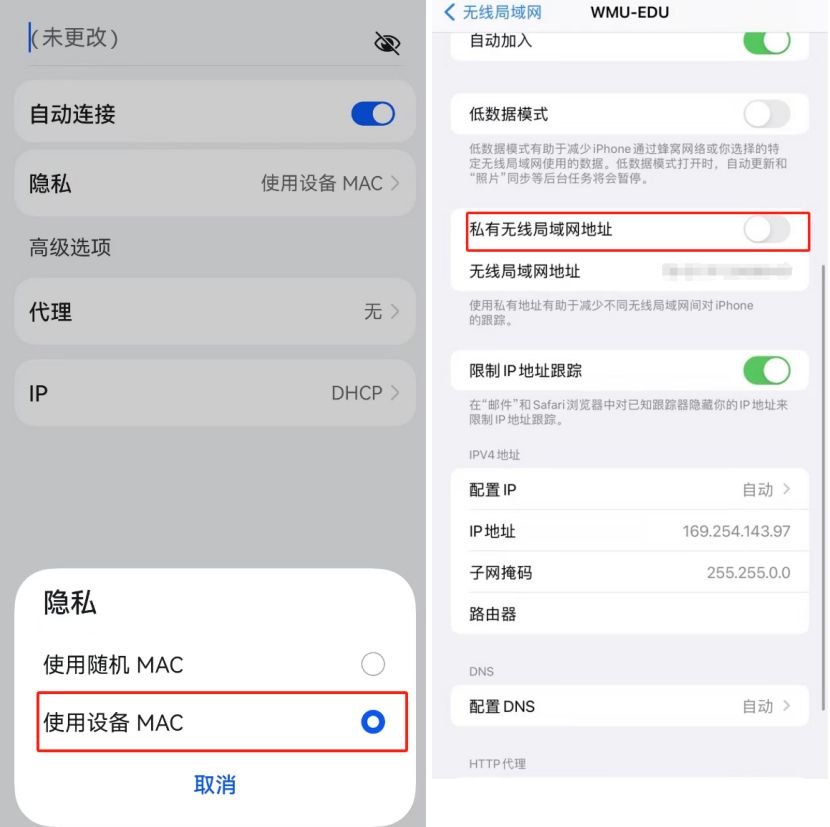
Fixed MAC address
Use a fixed MAC address. For example, on Android and HarmonyOS phones, select "Use Device MAC." On iPhones, remove "Private Wireless LAN Address."
Bind your mobile phone to your carrier account. A broadband account that has been processed but not bound to a carrier.
Connect to the wireless signal WMU-EDU, and click "Self-service" when the authentication interface automatically pops up. (After connecting to the signal, the authentication page will not pop up. Enter it manually or click 172.29.1.1 directly and wait for the authentication page to pop up)
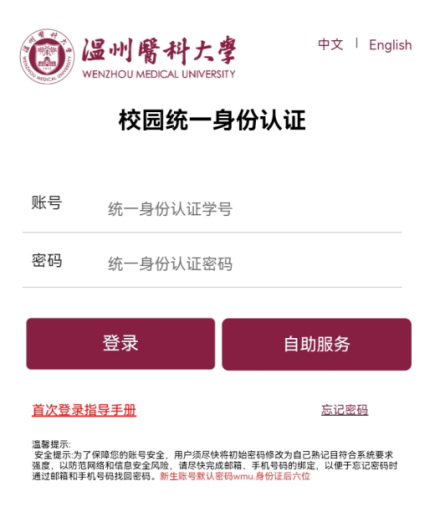
Click the "Self-Service" button to jump to the user self-service page and log in using the unified identity authentication account (student ID or work ID) and password.
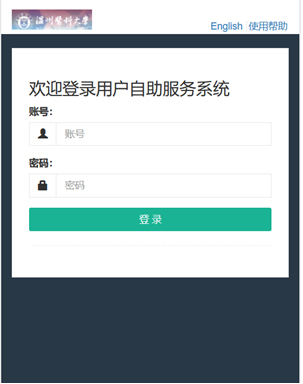
To bind the operator account
Enter the student's unified identity authentication account to log in to the self-service system, click the option bar on the right - select "Service" - Bind operator account module. After success, click Submit to bind the operator account and bind the operator broadband account password.
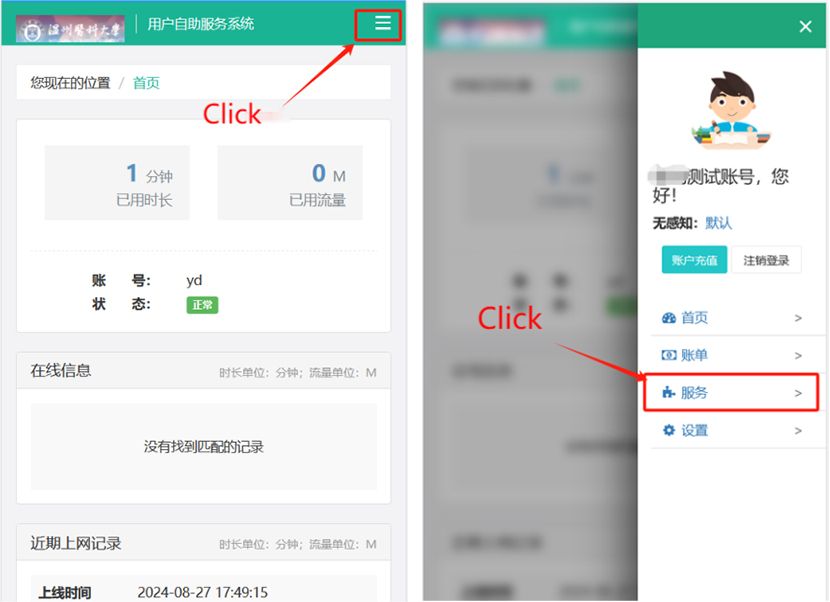
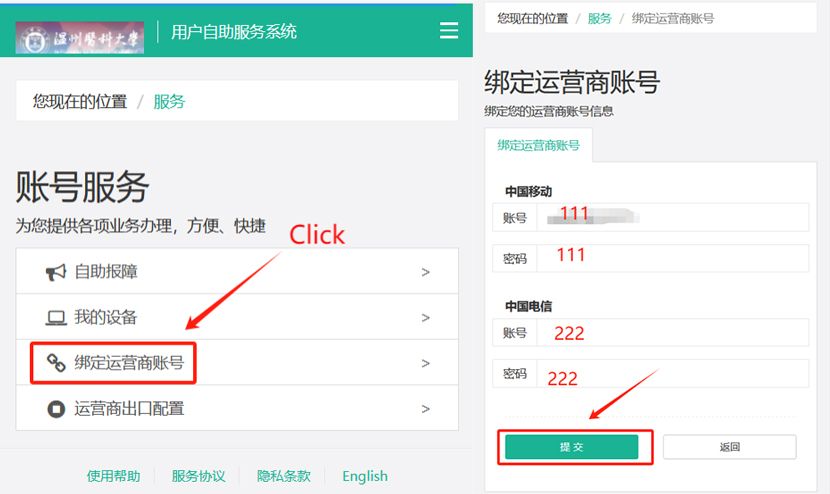
Select the export carrier
Return to Account Services, select the carrier export corresponding to your broadband connection, click Submit, and return to the authentication page. Use the "Welcome System" unified identity authentication password to log in and complete the authentication.
Kind tips
If you still can't access the internet after setting up, please call the service hotline for your broadband provider.
China Telecom: 86680577
China Mobile: 57110086 or 565656 (short number)
For further assistance, please contact the Information Technology Center: 0577-86689830 or 678678 (short number)