
Tel:+8657786689830
Email:itc-self@wmu.edu.cn
Use of central control equipment in multimedia classrooms
I. Before First Use: "DingTalk" Binding for Permission Activation.
Open DingTalk and scan the following QR code to activate authorization (Personal real-name authentication must be completed in DingTalk).
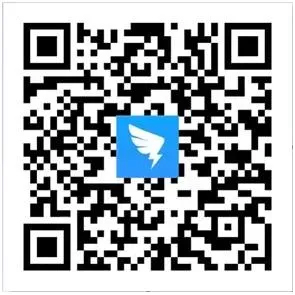
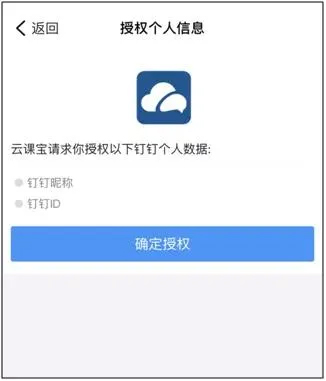
2. Click "Confirm Authorization".
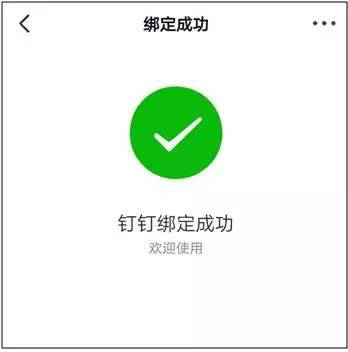
3. Binding Successful.
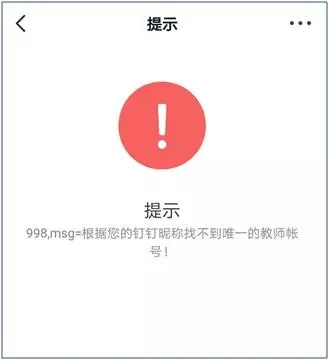
4. If a binding failure error appears, it might be because you haven't joined the Wenzhou Medical University DingTalk organization. Please contact the Information Technology Center: 86689892, 86689830 (Extension 678678).
II. Steps for Use During Class
1. Central Control Panel on the Podium: Touch the screen anywhere to enter the startup interface.
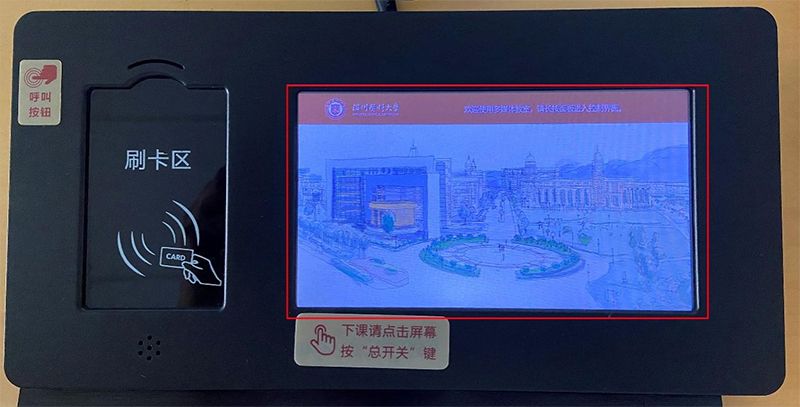
2. Startup
Use "DingTalk Scan QR Code" or your "Campus Card" to start up.
(1) Open DingTalk -> Scan the "DingTalk" QR code on the control panel -> All devices (computer, projector, audio) will start up automatically. Startup time is approximately 1 minute.
(2) Place your physical "Campus Card" on the card reading area to start up.
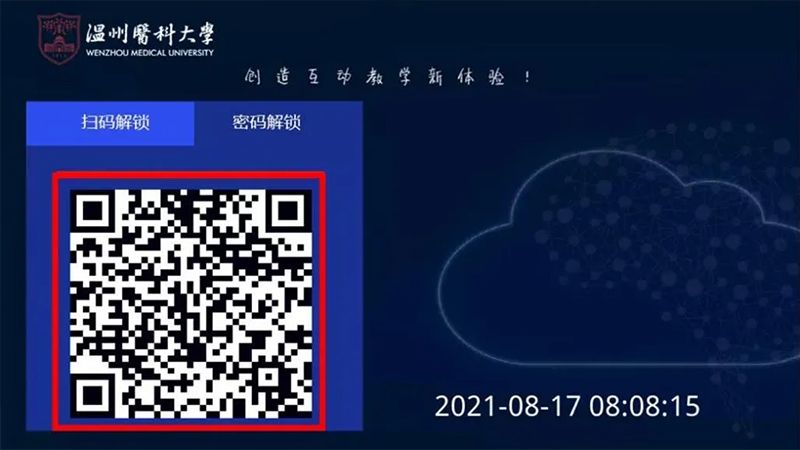
3. After entering the operation interface via QR code scan or card swipe, the default output signal is the desktop computer signal. If you need to use other functions, select them by tapping on the control panel screen.
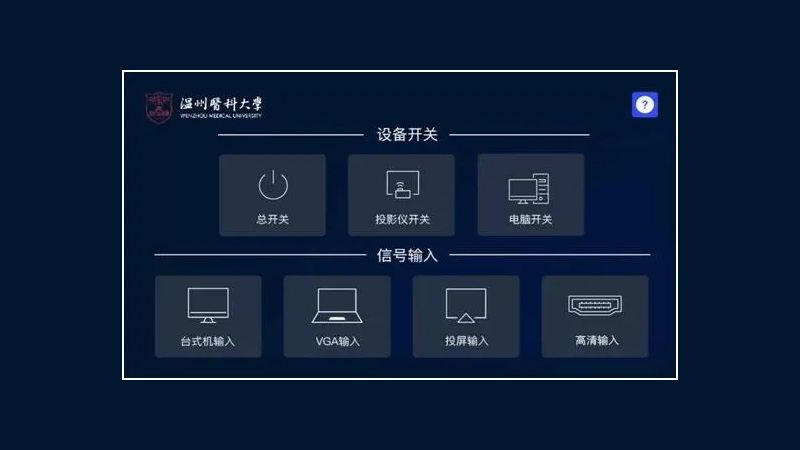
4. After class, please press the "Master Switch". All devices will shut down sequentially.
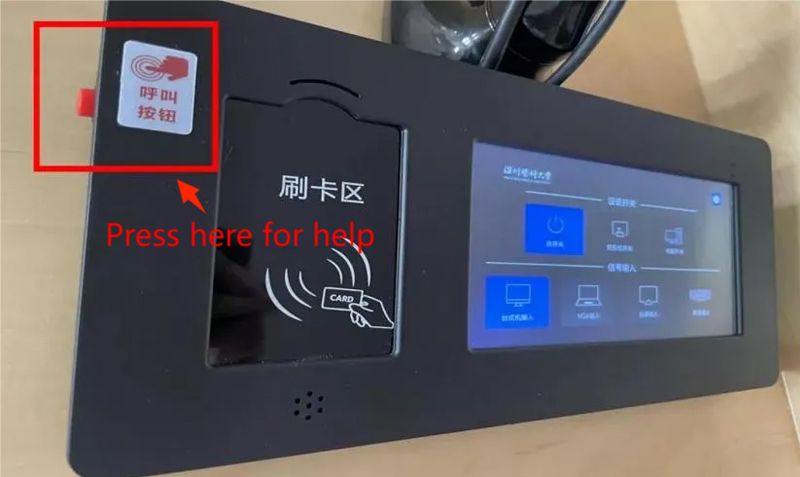
5. If you need assistance, please press the "Red" call button (located on the upper left side of the device).
III. Other Interesting Features
(1) Smartphone Screen Mirroring
Sometimes we have materials on our phones that we want to display directly. So how can we show the phone's screen on the projection screen? Let's take a quick look at how to use the smartphone screen mirroring feature~
After startup, select "Screen Mirroring Input" on the control panel.
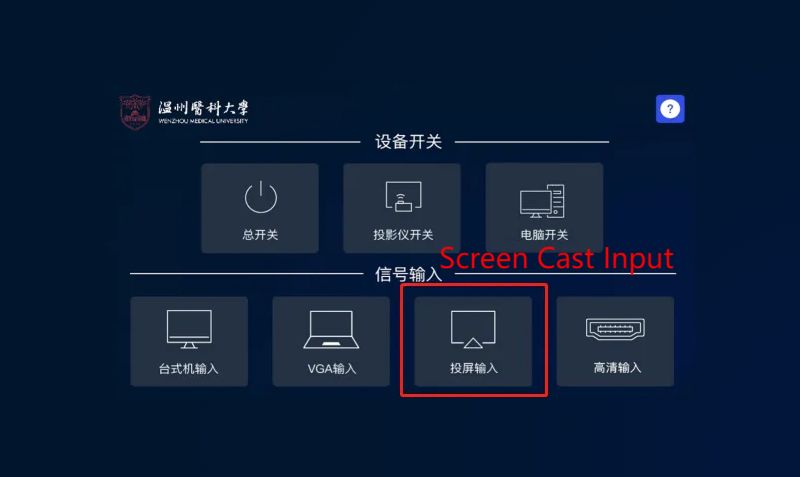
① For Android Phones
1. Settings -> WLAN -> Select the WiFi signal source corresponding to the classroom name.
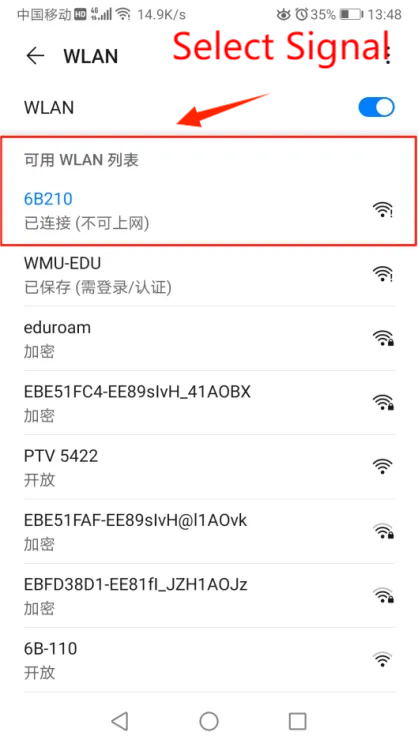
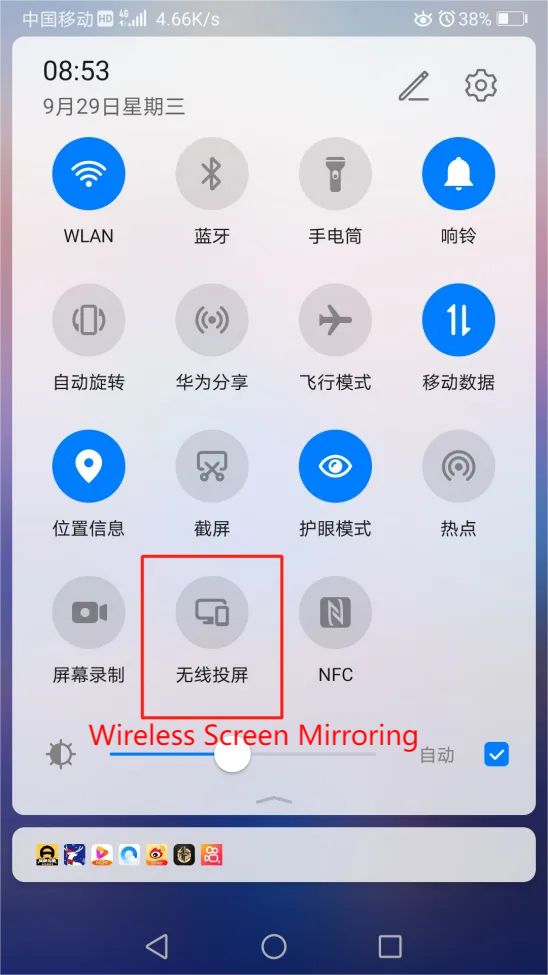
2. Pull down the main screen control menu, select "Wireless Display" or "Cast" / "Smart View" etc. (option name may vary).
3. Select and connect to the screen mirroring signal corresponding to the classroom name.
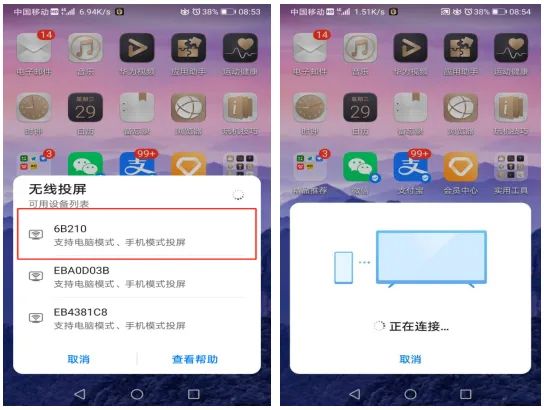
② For Apple (iPhone) Phones
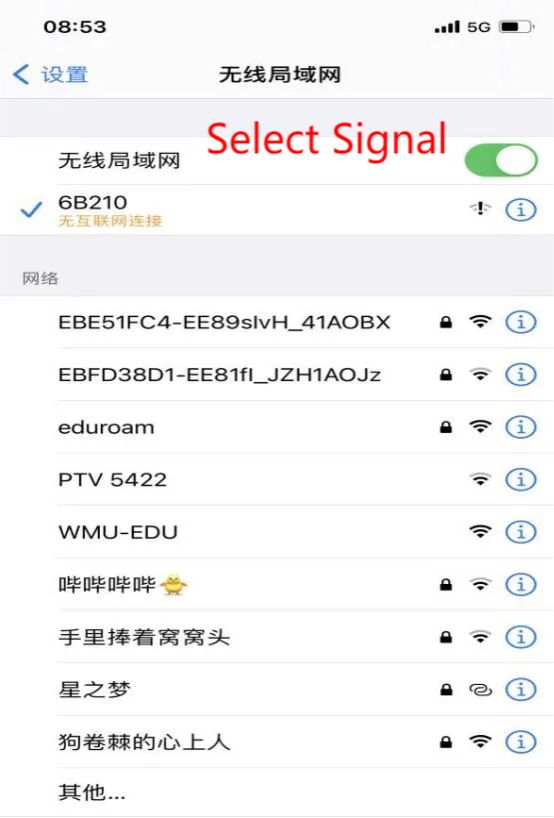
1. Settings -> Wi-Fi -> Select and connect to the WiFi signal corresponding to the classroom name.
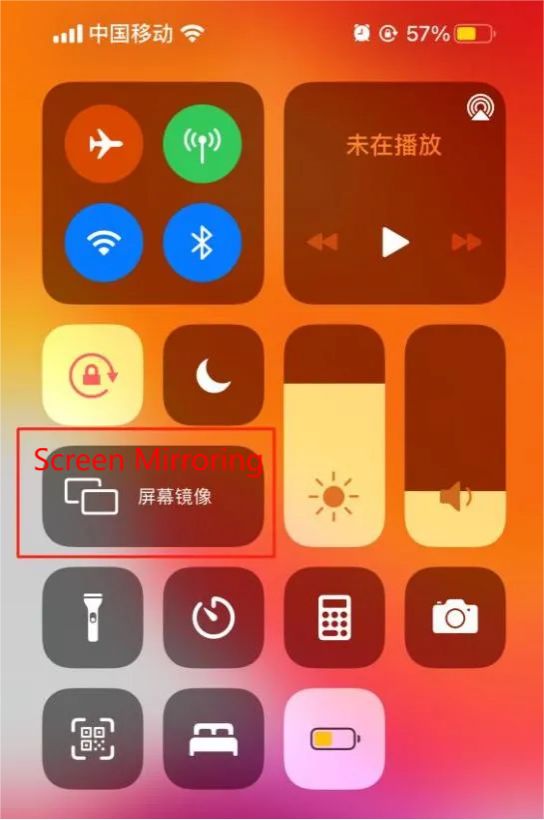
2. Pull down the main screen Control Center, select "Screen Mirroring".
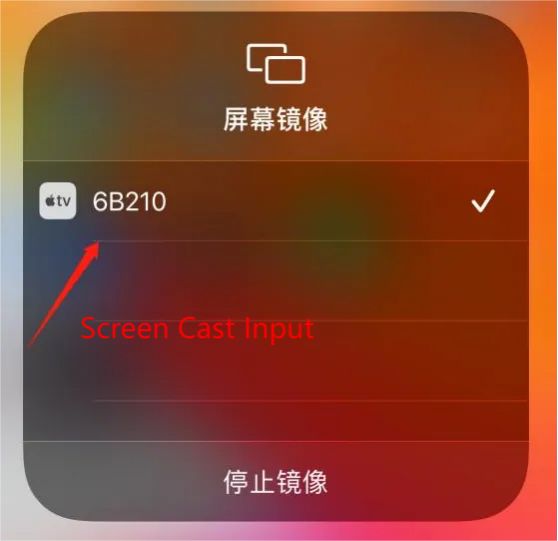
3. Select and connect to the screen mirroring signal source corresponding to the classroom name.
(2) Laptop HD Screen Mirroring
Do you sometimes have a lot of materials on your laptop that are inconvenient to transfer? You can try laptop HD screen mirroring.
① Laptop Wireless Screen Mirroring (For Windows 8.1 and above)
1. After startup, select "Screen Mirroring Input" on the control panel.
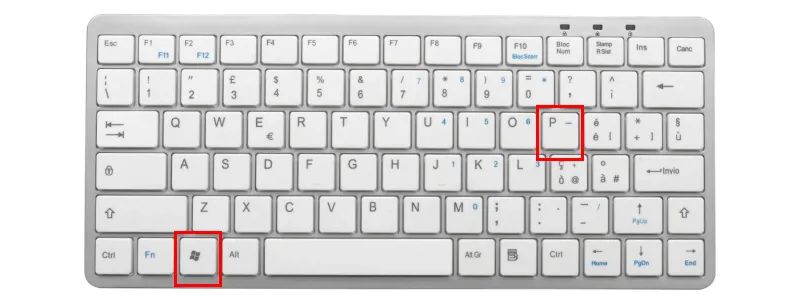
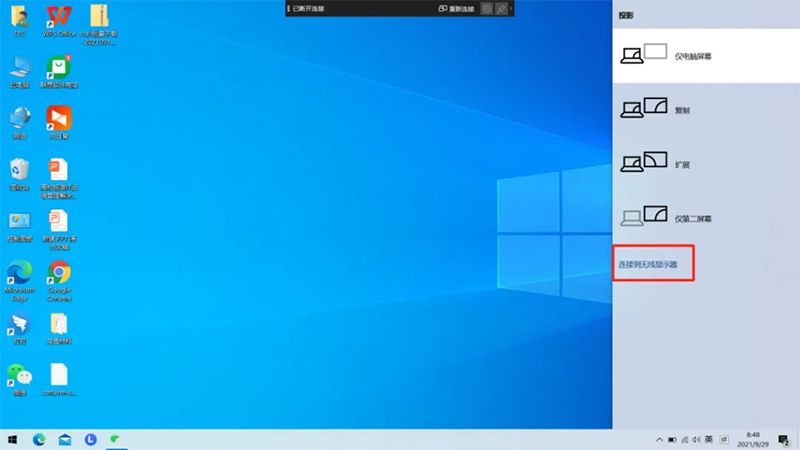
2. Press the WINDOWS + P on the keyboard, and select "Connect to a wireless display" from the menu that pops up.
3. Search for and select the device signal source corresponding to the classroom name.
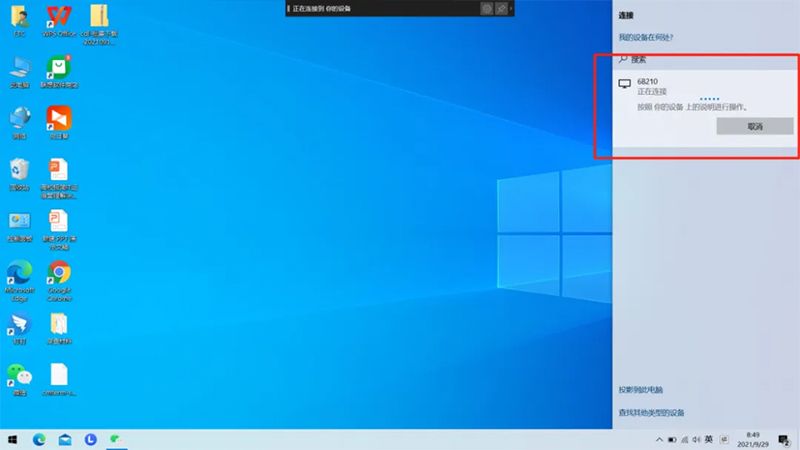
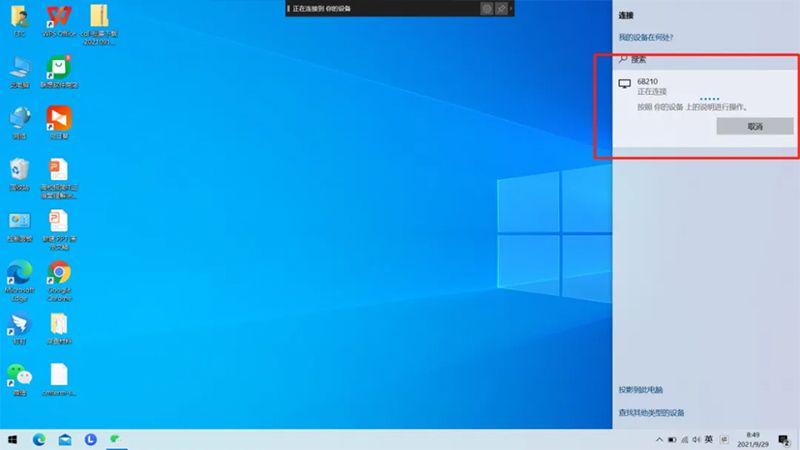
4. To exit laptop screen mirroring, click "Disconnect".
② Laptop Wireless Screen Mirroring (For Windows versions below 8.1)
1. Please download the wireless screen mirroring software (WiFi Display.exe).
Address: https://itc.wmu.edu.cn/WiFiDisplayGreen.rar
2. Connect to the screen mirroring device's WiFi, and run the wireless screen mirroring software (WiFi Display.exe).
3. Enter the Login Code to start screen mirroring.
③ Wireless Screen Mirroring for Mac OS (Apple) Systems
1. Connect the computer to the corresponding classroom WiFi signal.
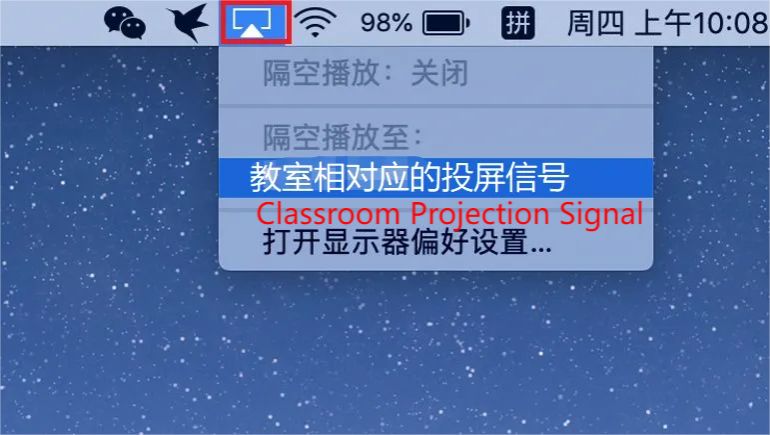
2. Click on "AirPlay" icon in the top right menu bar of the Mac.
3. Select the screen mirroring device and start mirroring.
④ Laptop Wired HD Input
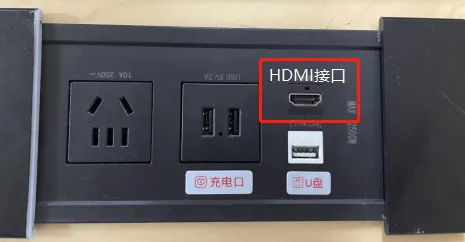
1. Use an HDMI cable to connect your laptop to the HDMI interface on the podium.
If you need assistance, please contact the Information Technology Center: 86689892, 86689830 (Extension 678678)

Copyright 2025 © Information Technology Center of Wenzhou Medical University

